Export Your Resume & Cover Letter as PDF or DOCX with RecruitEye, LLC
Exporting your resume and cover letter in the correct format is crucial for making a strong impression on potential employers. This guide will provide you with step-by-step instructions on how to export your documents in both PDF and DOCX formats, ensuring that your application materials are professional and easily accessible. Many job seekers struggle with formatting issues that can detract from their qualifications. By following the methods outlined here, you can avoid common pitfalls and present your best self to recruiters. We will cover how to export to PDF, save as DOCX, compare the two formats, and troubleshoot any issues you may encounter.
How do I export my resume and cover letter to PDF format?
Exporting your resume and cover letter to PDF format is a straightforward process that ensures your documents maintain their formatting across different devices. PDF files are widely accepted and preserve the layout, fonts, and images, making them ideal for job applications.
What are the step-by-step methods to save a resume as PDF in Word and Google Docs?
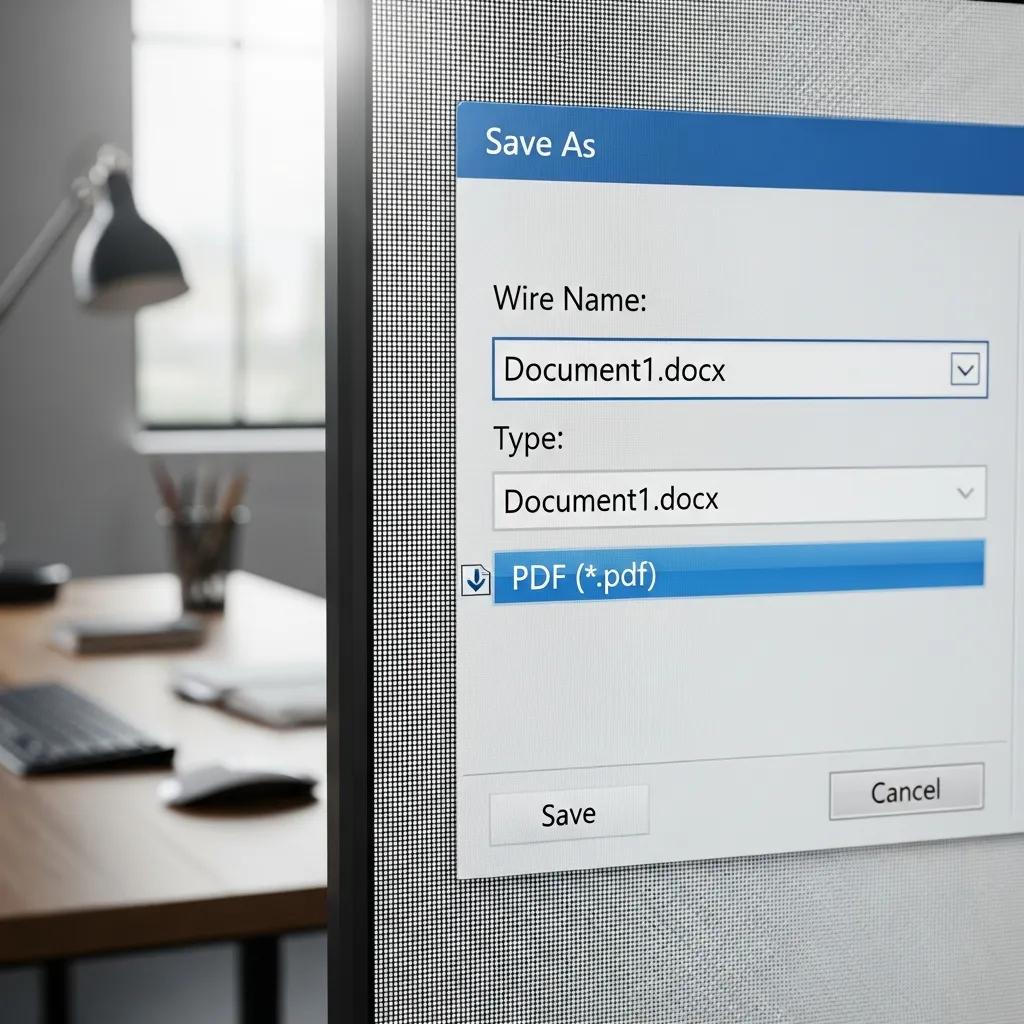
To save your resume as a PDF in Microsoft Word, follow these steps:
- Open your resume document in Word.
- Click on “File” in the top menu.
- Select “Save As” and choose the location where you want to save the file.
- In the “Save as type” dropdown menu, select “PDF.”
- Click “Save.”
For Google Docs, the process is slightly different:
- Open your resume in Google Docs.
- Click on “File” in the top menu.
- Hover over “Download” and select “PDF Document (.pdf)”.
The versatility of Google Docs in handling various export formats is well-documented.
Exporting Documents from Google Docs
documents from any of the three Google Docs tools can be exported into any of the aforementioned programs and file types.
Google docs: a review, R Attebury, 2008
These methods ensure that your resume is saved in a universally accepted format that maintains its integrity.
How can I export my cover letter as a PDF using common platforms?
Exporting your cover letter as a PDF can be done using similar methods as your resume. In Microsoft Word:
- Open your cover letter document.
- Click on “File” and then “Save As.”
- Choose “PDF” from the “Save as type” dropdown.
- Click “Save.”
In Google Docs:
- Open your cover letter.
- Click on “File,” then “Download.”
- Select “PDF Document (.pdf)”.
Using these steps will help you create a professional-looking cover letter that is ready for submission.
How do I save my resume and cover letter as DOCX files?
Saving your resume and cover letter as DOCX files is essential for editing and compatibility with Applicant Tracking Systems (ATS). This format allows for easy modifications and is widely used by employers.
Optimizing your resume for these systems is a critical step in today’s job market.
Resume Optimization for ATS-Friendly Formatting
Resume Optimization Tool transforms the job application process by enhancing resume quality through structured formatting and ATS-friendly content. It evaluates resumes against job descriptions.
Resume Optimization Tool for Job Seekers, 2025
What are the steps to convert and download a resume to Word DOCX format?
To save your resume as a DOCX file in Microsoft Word:
- Open your resume document.
- Click on “File” and select “Save As.”
- Choose the location for saving the file.
- In the “Save as type” dropdown, select “Word Document (*.docx)”.
- Click “Save.”
In Google Docs, you can download your resume as a DOCX file by:
- Opening your resume.
- Clicking on “File,” then “Download.”
- Selecting “Microsoft Word (.docx)”.
These steps ensure that your resume is in a format that is easy to edit and compatible with most job application systems.
How can I save or edit my cover letter in DOCX format after export?
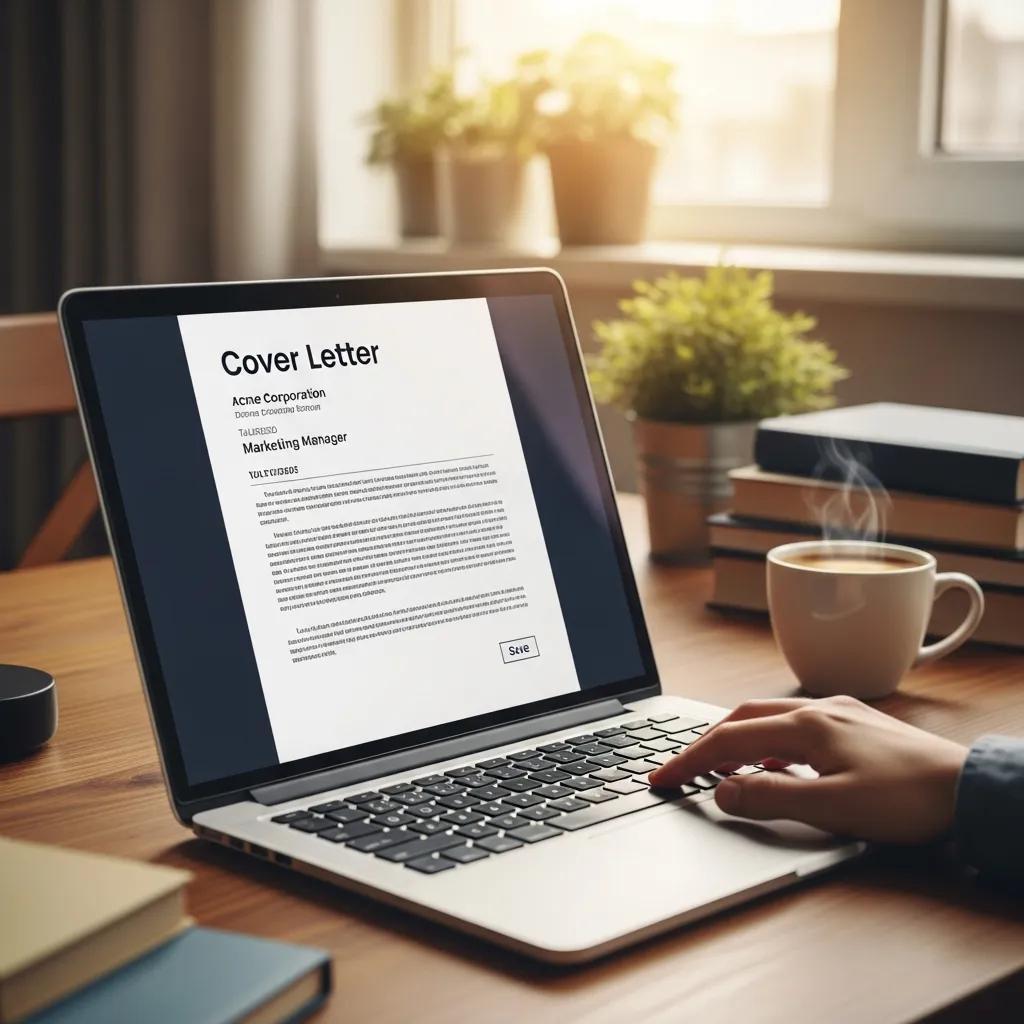
To save your cover letter in DOCX format using Microsoft Word:
- Open your cover letter document.
- Click on “File” and select “Save As.”
- Choose the desired location.
- Select “Word Document (*.docx)” from the “Save as type” dropdown.
- Click “Save.”
For Google Docs:
- Open your cover letter.
- Click on “File,” then “Download.”
- Choose “Microsoft Word (.docx)”.
This allows you to make any necessary edits easily and ensures that your cover letter is formatted correctly for submission.
Which is the best resume file format: PDF or DOCX?
Choosing between PDF and DOCX formats for your resume and cover letter depends on various factors, including the requirements of the job application and the preferences of the hiring manager.
What are the benefits and drawbacks of PDF versus DOCX for resumes and cover letters?
| Format | Benefits | Drawbacks |
|---|---|---|
| Preserves formatting, widely accepted, secure | Not easily editable, may have limited ATS compatibility depending on the system | |
| DOCX | Easily editable, compatible with ATS, widely used | Formatting may change across different software |
PDF files are excellent for preserving the visual integrity of your documents, while DOCX files allow for easy edits and are often preferred by ATS systems. Understanding these differences can help you choose the right format for your job applications.
When should I choose PDF or DOCX based on ATS compatibility and recruiter preferences?
- Choose PDF: If the job posting specifically requests a PDF format or if you want to ensure that your formatting remains intact.
- Choose DOCX: If the application process involves an ATS, as this format is more likely to be parsed correctly by the system.
Understanding how Applicant Tracking Systems process resumes can further inform your choice of file format.
Automated Resume Parsing & ATS Integration
We also assess well-known resume parsing tools according on their accuracy, with an emphasis on enhancing integration with Applicant Tracking Systems (ATS).
Automated Resume Parsing: A Review of Techniques, Challenges and Future Directions, 2025
By aligning your document format with the expectations of recruiters and ATS, you can enhance your chances of making a positive impression.
How can I troubleshoot common issues when exporting resumes and cover letters?
Exporting documents can sometimes lead to formatting issues or errors. Knowing how to troubleshoot these problems can save you time and frustration.
What solutions exist for formatting distortions in PDF or DOCX exports?
- Check your original document for any formatting inconsistencies.
- Use the “Print Preview” feature before exporting to see how the document will appear.
- Adjust margins and spacing as needed.
By ensuring your document is correctly formatted before export, you can minimize issues.
How do I handle file size limits and export errors effectively?
- Reduce the size of images in your document.
- Use the “Compress Pictures” feature in Word.
- Save your document in a different format and then convert it back to PDF or DOCX.
These strategies can help you manage file size and ensure successful exports.